Touchscreen MacBook Pro: Swipe Up to Open the Dock
New details from Apple's Los Angeles hands-on event show how touch works in macOS on the new 14- and 16-inch MacBook Pro models, from gestures to settings and safeguards.
 Merhabyte Newsdesk · · 2 min read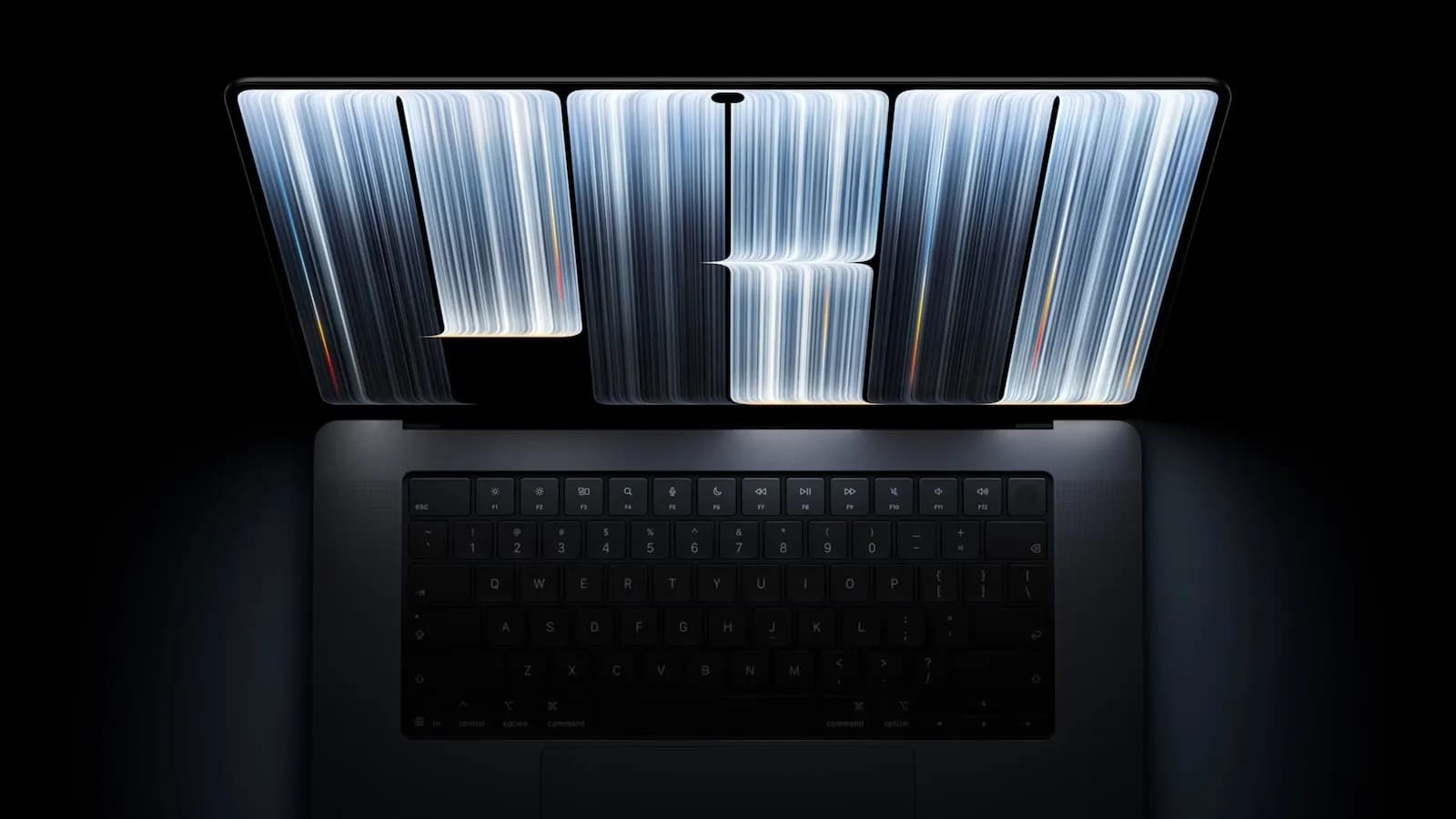
Apple has announced new 14-inch and 16-inch MacBook Pro models with touch-enabled OLED displays. Technology reporters invited to the company's hands-on event in Los Angeles are still sharing what they learned about the machines.
One attendee compiled 15 details about the new models in an article and a social media post. Some had surfaced before, but the list is a useful summary of how the touchscreen will work inside macOS. Below, we group the details by input logic, gestures, settings and safeguards, to make clearer both what touch changes on the Mac and what it leaves alone.
Touch is an extra option, not a replacement
According to Apple, the keyboard and trackpad remain the primary input methods on the new MacBook Pro models. Touch is offered as an additional option for those who want it, so the company is positioning it as a companion to the existing tools rather than a substitute for them.
Apple said a generation of young content creators has grown up with touchscreens and that it believes the time is right to bring the capability to the Mac. It also noted that music producers prefer touch to the trackpad when controlling virtual instruments. Together, those remarks suggest the touchscreen is aimed first at creative work.
Multi-touch supports up to 10 fingers at once. Settings include an option to turn off touch input, as well as one to switch off the glowing Apple logo on the lid. Users who do not want the touch feature appear to be able to disable it.
How touch gestures work in macOS
The window controls in the top-left corner, the close, minimize and zoom buttons, expand when pressed. Items in lists also spread further apart when touched. These two details show that the macOS interface has received some small adjustments for touch.
Swiping up from the bottom of the screen opens the Dock, while swiping down from the top summons Spotlight and Siri. A long press acts as a right-click. Grabbing a window and flicking it quickly left or right starts Split View. Many everyday actions, including clicking, opening menus and arranging windows, can therefore also be done with a finger.
Safeguards against accidental touches and other details
If the lid is closed while a finger is still touching the screen, touch input is temporarily disabled to prevent unintended contact. The camera is also stabilized when the screen is touched, so video calls do not shake. You cannot, however, wake a MacBook Pro by tapping the display; a sleeping machine still needs a keyboard or trackpad input.
Live Activities from iPhone apps can also appear in the Dynamic Island area, a detail that makes the connection between iPhone and Mac more visible on screen.
Pre-orders for the new MacBook Pro models have begun, and the machines go on sale Friday, November 6. Once they ship, users will be able to try these gestures and settings for themselves.
Comments
No comments yet. Be the first to comment.